How to Add Subtitles in VLC Media Player – Step-by-Step Guide


Asif Mohammad Sovon
Asif Mohammad Sovon, IT Assistant at Bangladesh Air Force and Fileion tech writer, simplifies tech t...
What is Subtitle Integration in VLC?
Step-by-Step Guide: How to Add Subtitles
4. Customization & Optimization
Click Here to Download VLC Media Player
Q1: How do I fix subtitles that are out of sync?
Q2: Can VLC download subtitles for me?
Q3: Why is my subtitle file not loading?
You finally sit down to watch a great film, but the dialogue is hard to hear, or in a language you do not speak. Without subtitles, you miss the nuances of the story. It is a common frustration for movie lovers and students alike.
Subtitles are essential for better accessibility, language learning, and understanding fast-paced dialogue. They ensure that your entertainment or learning experience is never interrupted by a lack of clarity.
In this guide, you will learn how to manually add subtitle files, download them automatically within the player, and fix timing issues. Let’s dive into the basics before moving to the hands-on steps.
What is Subtitle Integration in VLC?
VLC Media Player is a versatile, open-source tool that supports almost every video format. Subtitle integration allows the software to overlay external text files on top of a video.
This feature is used by international movie fans, students watching foreign lectures, and gamers following cutscenes. It achieves a seamless blend of audio and visual text to provide a complete viewing experience.
Key Features
-
Wide Format Support: Works with SRT, SSA, VTT, and SUB files.
-
Built-in Downloader: Includes a tool to find subtitles online without leaving the app.
-
Sync Control: Allows users to delay or speed up text to match the audio perfectly.
-
Visual Customization: You can change font size, color, and background to improve readability.
Step-by-Step Guide: How to Add Subtitles
1. Getting Started
First, you need the VLC Media Player on your device. For the most stable experience and the latest features, you should download the app from Fileion. Once installed, ensure you have your video file and a matching subtitle file (usually in .srt) ready in your local storage.
2. Initial Setup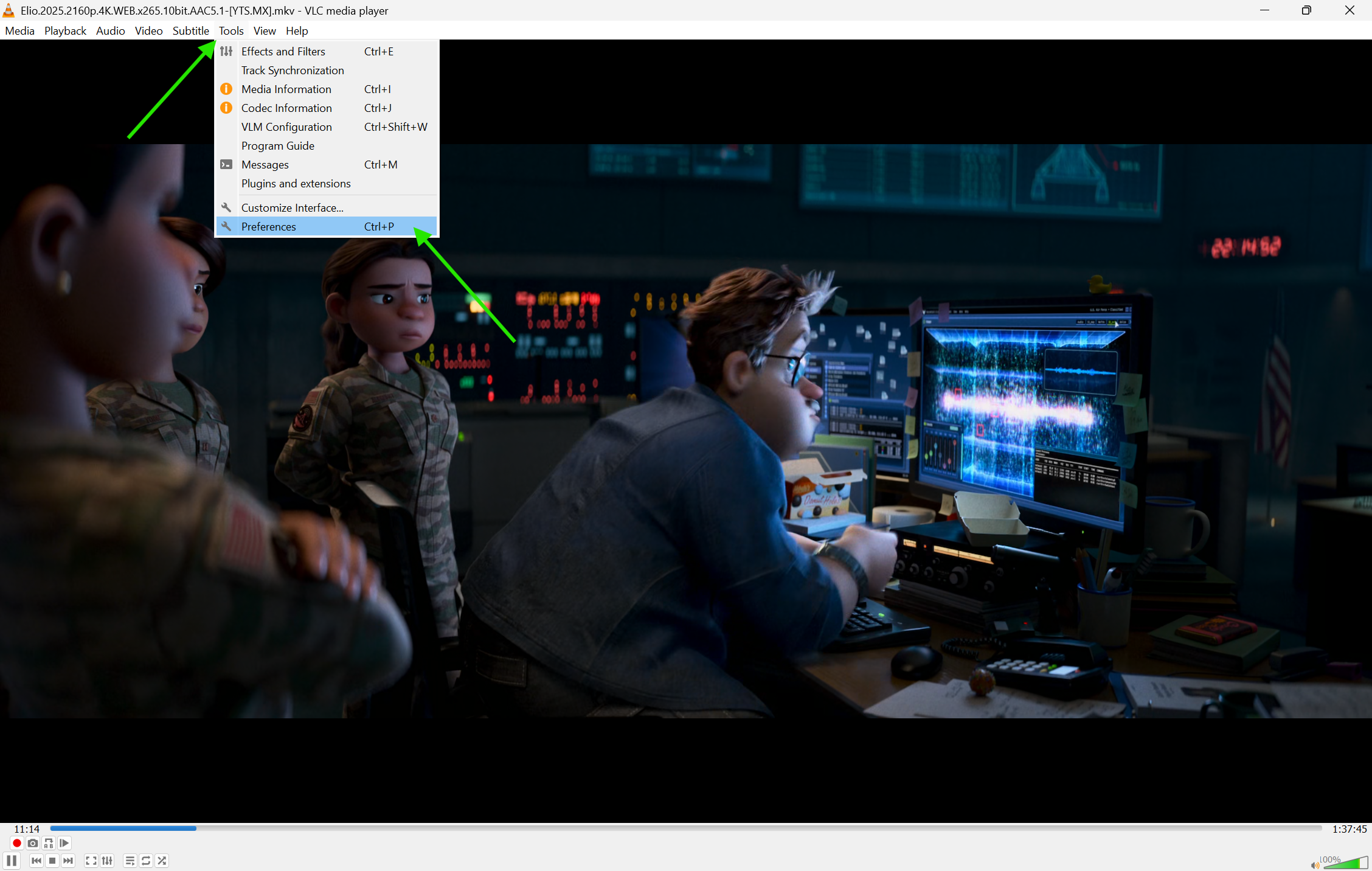
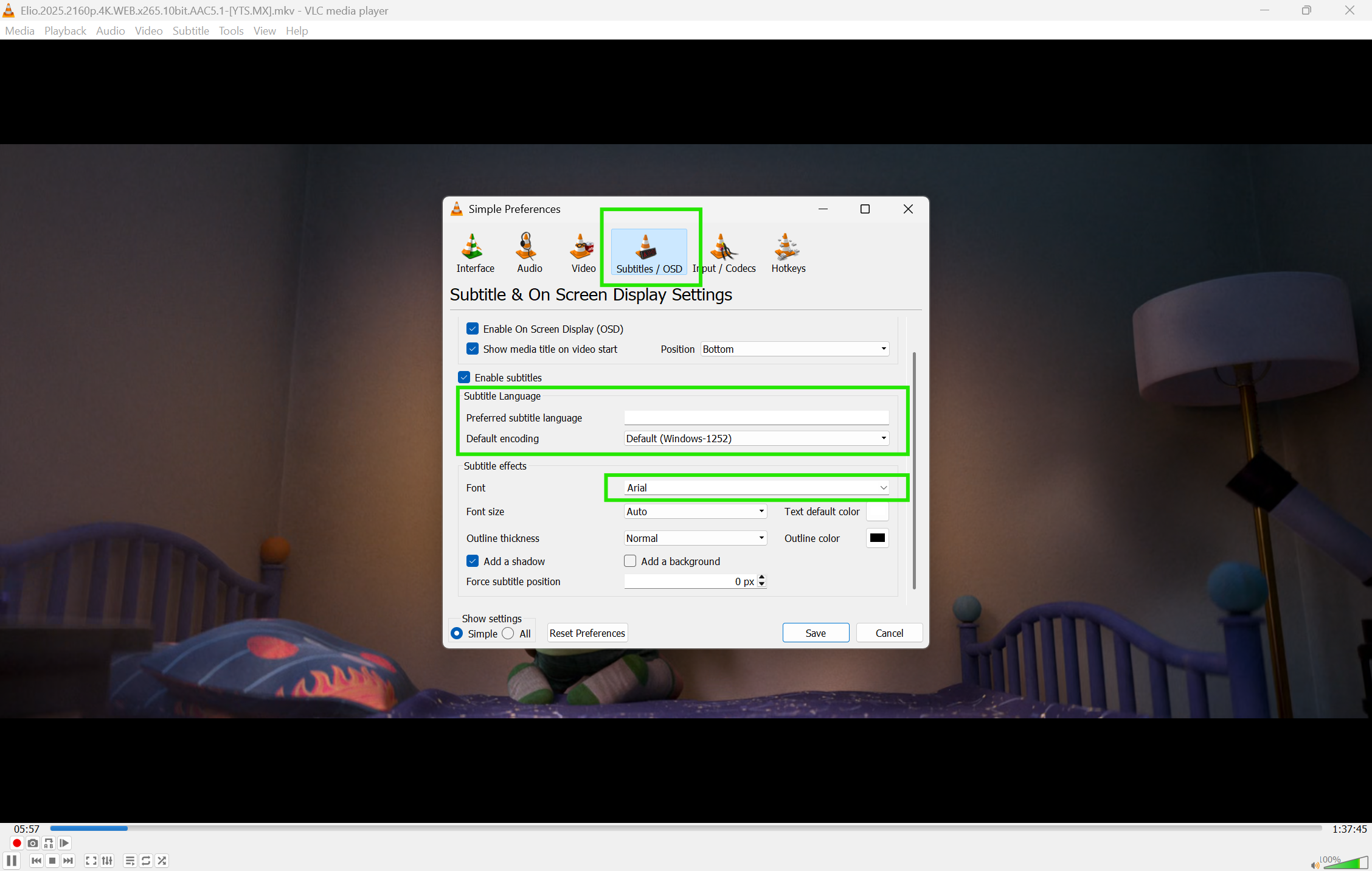
Open VLC Media Player. Go to Tools on the top menu and select Preferences. Click on the Subtitles / OSD tab. Here, you can set your preferred language and choose the default font style. This ensures all future videos follow your viewing preferences automatically.
3. Core Action Step
The simplest way to add subtitles is to drag and drop your .srt file directly onto the VLC window while the video is playing.
Alternatively, you can do it through the menu:
-
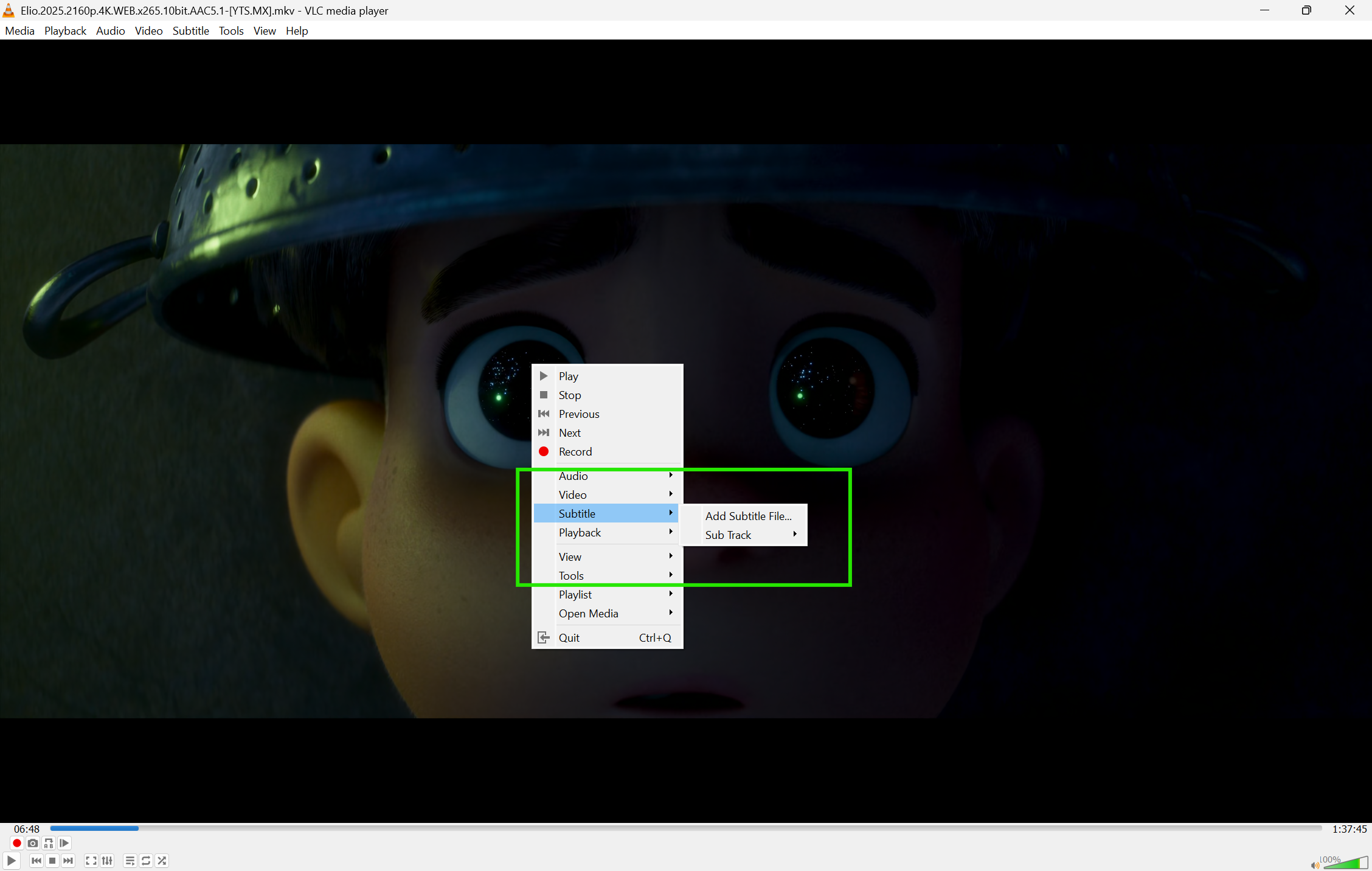
Right-click anywhere on the video screen.
-
Navigate to Subtitle.
-
Select Add Subtitle File.
-
Browse your computer and select the file you want to use.
4. Customization & Optimization
If the text is too small, go back to Preferences > Subtitles / OSD. Change the font size to "Large" or "Extra Large." You can also add a black background or shadow to the text. This makes subtitles easier to read against bright scenes in the video.
5. Finalizing & Saving
VLC does not "burn" the subtitles into the video file permanently. Instead, it creates a temporary overlay. To ensure subtitles load every time you open the video, give the subtitle file the exact same name as the video file and keep them in the same folder.
Tips for Beginners
-
The V Key: Press the V key on your keyboard to quickly cycle through different subtitle tracks.
-
File Naming: If your movie is called Movie1.mp4, name your subtitle Movie1.srt. VLC will load it automatically.
-
Simple Search: Use the official downloader tool found under View > VLSub for quick results.
Common Mistakes to Avoid
-
Wrong Encoding: If you see weird characters, your file encoding might be wrong. Set it to Universal (UTF-8) in the subtitle settings.
-
Different Versions: Ensure your subtitle file matches the specific version of your video (e.g., Director's Cut vs. Theatrical) to avoid timing gaps.
-
Hidden Tracks: Sometimes, subtitles are disabled. Always check Subtitle > Sub Track to make sure a track is active.
If the subtitles appear too early or too late, you can fix them in real-time. Use the G key to delay the subtitles or the H key to speed them up. Each tap moves the timing by 50 milliseconds. This is a lifesaver for files that are slightly out of sync.
Pricing
VLC Media Player is 100% free and open-source. There are no hidden subscription fees or advertisements. It is available for Windows, macOS, Linux, Android, and iOS.
While there are paid alternatives like some professional editing suites, VLC remains the best free option for casual users.
Final Verdict
Adding subtitles to VLC is a straightforward process that significantly improves your viewing experience. It is a must-have skill for anyone who consumes global content or needs extra clarity. To get started with the latest version, download the app from Fileion today and enjoy your media with perfect captions.
Click Here to Download VLC Media Player
FAQs
Q1: How do I fix subtitles that are out of sync?
Ans: Use the G and H keys on your keyboard to shift the subtitle timing while the video is playing.
Q2: Can VLC download subtitles for me?
Ans: Yes. Go to View > VLSub while a video is open to search and download subtitles automatically.
Q3: Why is my subtitle file not loading?
Ans: Check if the file extension is supported (like .srt) and make sure the file is not corrupted.
Q4: Can I change the color of the subtitle text?
Ans: Yes. You can change text color and size under Tools > Preferences > Subtitles / OSD.
Q5: Does this work on the VLC mobile app?
Ans: Yes. The mobile version also supports SRT files and auto-downloading, though the menus look slightly different.
Comments
Let us know about your thoughts
Explore more articles related to VLC Media Player
Here you will find all the latest tips and tricks about VLC Media Player. Also you will get many solution of problems which you may face while using this app.
Published at: Jan 04, 2026
How to Add Subtitles in VLC Media Player – Step-by-Step Guide
You finally sit down to watch a great film, but the dialogue is hard to hear,...

Published at: Jan 04, 2026
How to Stream Videos Online with VLC Media Player – Step-by-Step Guide
Most people use VLC Media Player to watch videos already saved on their hard drives. But...

Published at: Jan 29, 2026
How to Use VLC Equalizer: Best Audio Settings & Custom Preset Guide
Ever feel like your favorite movie sounds flat or the dialogue is hard to hear? This...


Play anything. Anywhere
VLC Media Player is a free and open-source, cross-platform media player software and streaming media server developed by the VideoLAN project. VLC is available for desktop operating systems and mobile platforms, such as Android, iOS and iPadOS.