How to Use VLC Equalizer: Best Audio Settings & Custom Preset Guide


Asif Mohammad Sovon
Asif Mohammad Sovon, IT Assistant at Bangladesh Air Force and Fileion tech writer, simplifies tech t...
Step-by-Step Guide: How to Use the VLC Equalizer
4. Customization & Optimization
Click here to download VLC Media Player
Q1: Does the equalizer work on the VLC mobile app?
Q2: How do I reset the equalizer to the default?
Q3: Why is my audio crackling when I use the equalizer?
Ever feel like your favorite movie sounds flat or the dialogue is hard to hear? This is a common problem when using standard laptop speakers or basic headphones. Audio quality can make or break your viewing experience, especially during action-packed scenes or quiet, dramatic moments.
Mastering the VLC equalizer allows you to fix these issues instantly. It gives you control over how your hardware handles different sound frequencies. In this guide, you will learn how to tweak these frequencies, use built-in presets, and save your own configurations for future use.
Let’s dive into the basics before advancing to the hands-on steps.
What is the VLC Equalizer?
The VLC equalizer is a built-in tool that allows you to modify the frequency response of your audio. It uses a 10-band graphic interface. This means you can adjust different parts of the sound spectrum, from deep bass to high-pitched treble.
Movie fans, music lovers, and gamers use this tool to compensate for poor speaker quality or specific room acoustics. It can make small speakers sound larger or help you hear voices over loud background music.
Key Features
-
10-Band Control: Adjust specific frequencies ranging from 60Hz to 16kHz.
-
Preamp Slider: Boost the overall volume level before it reaches the equalizer filters.
-
Built-in Presets: Choose from 18 predefined profiles, including Rock, Pop, Classical, and Full Bass.
-
Real-time Adjustments: Changes happen instantly, so you can hear the difference while the media plays.
-
Two-Pass Filter: A specialized setting that processes audio twice for a cleaner, more stable output.
Step-by-Step Guide: How to Use the VLC Equalizer
1. Getting Started
First, ensure you have the latest version of VLC Media Player installed. If you do not have it yet, you can download the official software directly from Fileion to get the most stable and secure version.
Open VLC and start playing any video or audio file. Having media playing helps you hear the changes as you move the sliders.
2. Initial Setup
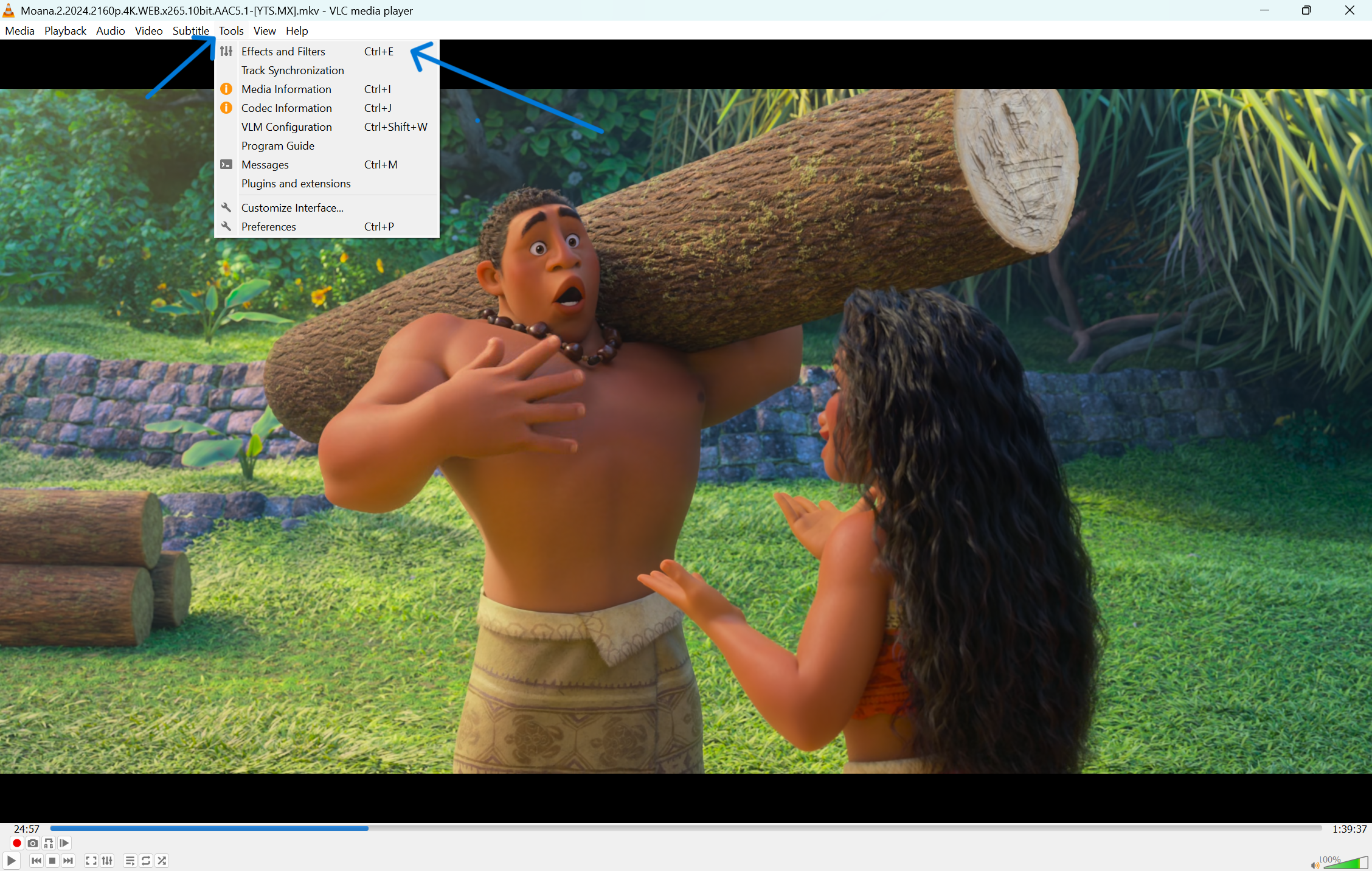
To find the equalizer, navigate to the top menu bar.
-
Click on Tools.
-
Select Effects and Filters from the dropdown menu.
-
Alternatively, you can use the keyboard shortcut Ctrl + E (Windows) or Cmd + E (Mac).
-
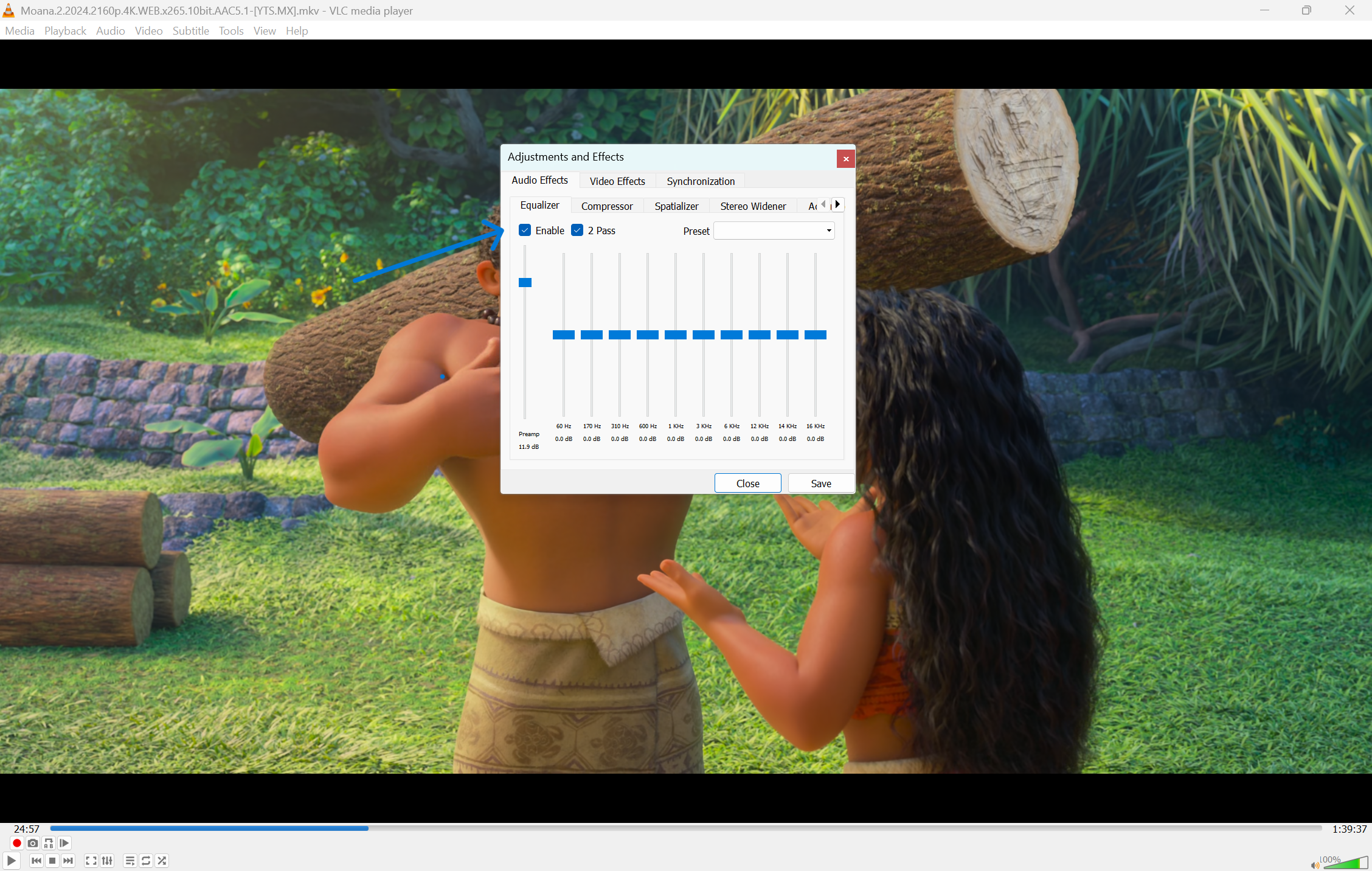
A window titled "Adjustments and Effects" will appear. Click the Audio Effects tab, then ensure the Equalizer sub-tab is selected.
3. Core Action Step
By default, the equalizer is disabled. To start:
-
Check the Enable box.
-
Locate the Preset dropdown menu. If you are unsure where to start, try "Flat" or "Full Bass."
-
Move the vertical sliders up to boost a frequency or down to cut it.
-
Adjust the preamp slider to the far left. If your audio sounds distorted after boosting frequencies, lower the Preamp to prevent "clipping."
4. Customization & Optimization
If you find a combination of slider positions that you love, you can save it. VLC does not have a "Save New Preset" button in this specific window, but it will remember your last manual settings if you keep the "Enable" box checked.
For the best quality, try the 2-pass filter. This checkbox is located next to the Enable toggle. It helps refine the sound and prevents sudden peaks in volume that could damage your speakers.
5. Finalizing & Saving
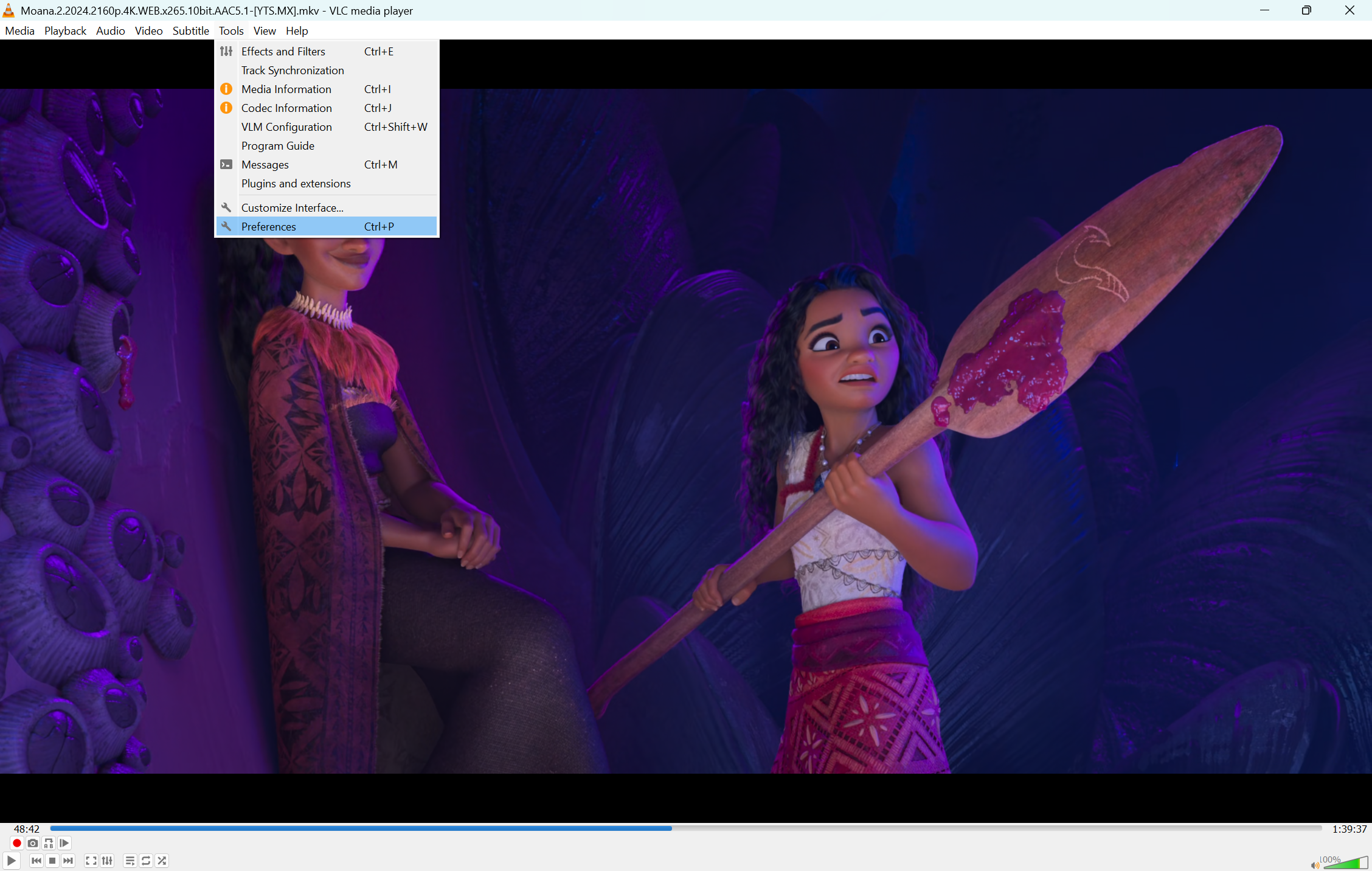
Once you are happy with the sound, you can simply close the Adjustments and Effects window. The settings stay active as long as VLC is open. If you want these settings to be the default every time you open the program:
-
Go to Tools > Preferences.
-
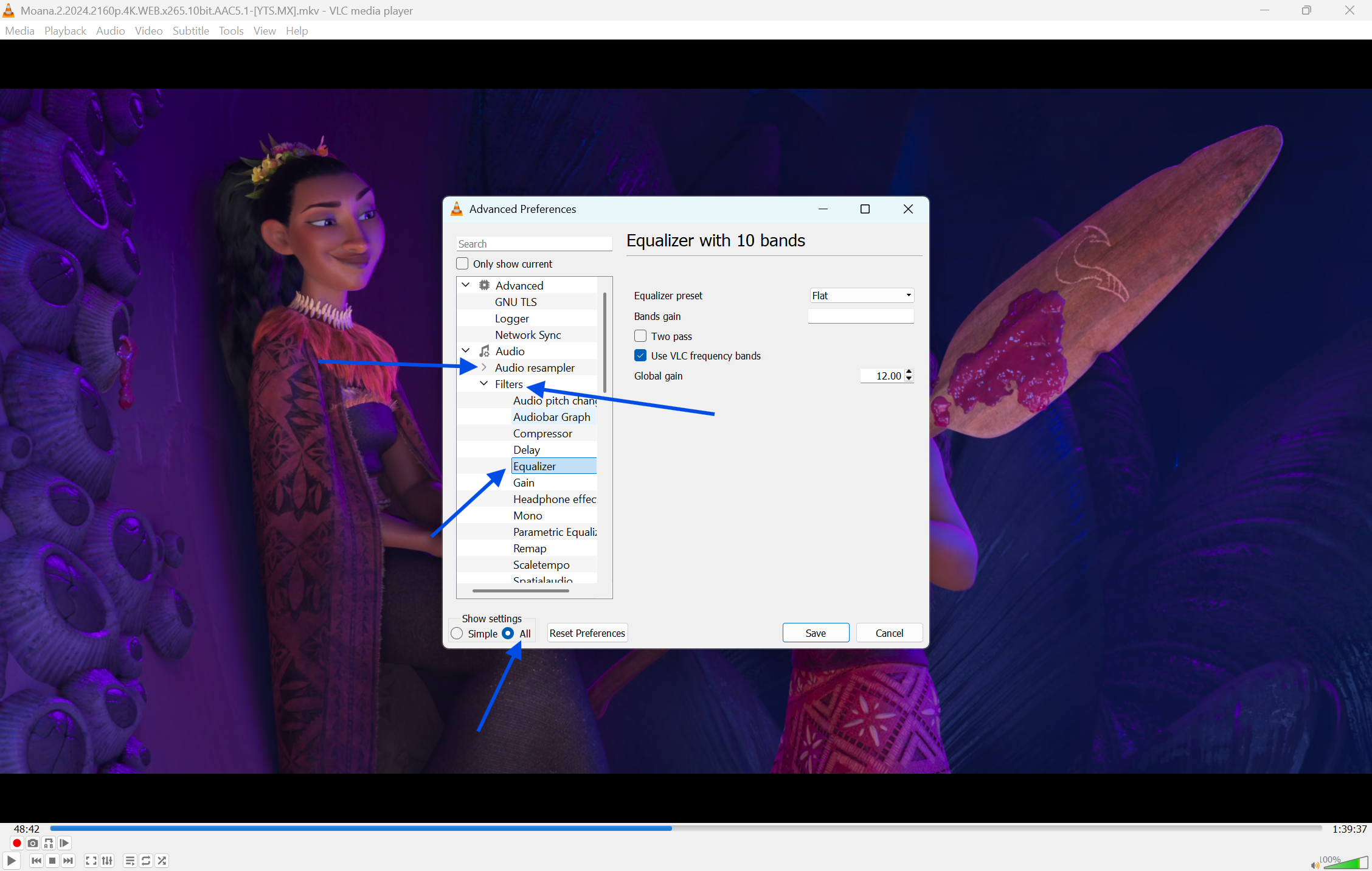
At the bottom left, under "Show settings," select All.
-
Go to Audio > Filters > Equalizer.
-
Enter your desired bands and preamp values here and click Save.
Quick Tips
-
Small Adjustments: Move sliders in small increments. Large jumps can make the audio sound "muddy" or "tinny."
-
Dialogue Boost: To hear voices better, slightly boost the middle frequencies (around 1kHz to 3kHz).
-
Bass Control: If your speakers are rattling, lower the 60Hz and 170Hz sliders.
-
Reset: If you make a mistake, simply change the Preset back to Flat to start over.
Common Mistakes to Avoid
-
Over-boosting: Raising all sliders to the top will cause heavy distortion and may hurt your ears.
-
Ignoring the Preamp: If you boost many frequencies, you must lower the Preamp to keep the signal clean.
-
Leaving it on for everything: A "Rock" preset might sound great for music, but terrible for a podcast. Remember to switch presets based on what you are watching.
Pricing & Availability
VLC Media Player is completely free and open-source. There are no subscriptions, hidden fees, or "Pro" versions. It is available for Windows, macOS, Linux, Android, and iOS. While there are paid audio enhancers available for computers, VLC’s built-in tool is powerful enough for most users.
Final Verdict
The VLC Equalizer is a powerful, free tool that can significantly improve your media experience. Whether you need more bass for a party or clearer dialogue for a late-night movie, these settings offer the flexibility you need.
If you haven't updated your player recently, download the latest version from our site today to ensure you have access to all these audio features.
Click here to download VLC Media Player
FAQs
Q1: Does the equalizer work on the VLC mobile app?
Ans: Yes, the Android and iOS versions of VLC include an equalizer. You can find it in the audio player menu under the three-dot icon.
Q2: How do I reset the equalizer to the default?
Ans: Uncheck the Enable box or select the Flat preset from the dropdown menu.
Q3: Why is my audio crackling when I use the equalizer?
Ans: This usually happens because the signal is too loud. Lower the Preamp slider to fix the crackling or distortion.
Q4: Can I save a custom preset with a specific name?
Ans: In the standard interface, VLC remembers your "Manual" setting. To create permanently named presets, you must edit the configuration file in the Advanced Preferences menu.
Q5: What is the best setting for laptop speakers?
Ans: Try the laptop speakers/headphones preset if available, or manually boost the mid-range and high-range frequencies, as small speakers often struggle with deep bass.
Comments
Let us know about your thoughts
Explore more articles related to VLC Media Player
Here you will find all the latest tips and tricks about VLC Media Player. Also you will get many solution of problems which you may face while using this app.

Published at: Jan 04, 2026
How to Add Subtitles in VLC Media Player – Step-by-Step Guide
You finally sit down to watch a great film, but the dialogue is hard to hear,...

Published at: Jan 04, 2026
How to Stream Videos Online with VLC Media Player – Step-by-Step Guide
Most people use VLC Media Player to watch videos already saved on their hard drives. But...
Published at: Jan 29, 2026
How to Use VLC Equalizer: Best Audio Settings & Custom Preset Guide
Ever feel like your favorite movie sounds flat or the dialogue is hard to hear? This...


Play anything. Anywhere
VLC Media Player is a free and open-source, cross-platform media player software and streaming media server developed by the VideoLAN project. VLC is available for desktop operating systems and mobile platforms, such as Android, iOS and iPadOS.