How to Convert Videos Using VLC Media Player – Step-by-Step Guide


Asif Mohammad Sovon
Asif Mohammad Sovon, IT Assistant at Bangladesh Air Force and Fileion tech writer, simplifies tech t...
Ever tried to play a video only to see a "file format not supported" error? It is a frustrating experience. Compatibility issues often happen when you move files between phones, computers, and smart TVs. You might have a high-quality MKV file that your tablet refuses to open, or a large AVI file that takes up too much space.
Knowing how to change video formats quickly can save your project or your movie night. You do not need to buy expensive editing software to fix this. In fact, you likely already have the tool you need on your desktop. This guide will show you how to use a familiar media player to transform your files in minutes.
In this guide, you will learn the exact steps to convert videos safely and efficiently. Let’s dive into the basics before moving to the hands-on steps.
What is VLC Media Player?
VLC Media Player is a free, open-source multimedia player created by the VideoLAN project. Most people use it just to watch movies because it supports almost every file type imaginable. However, it is also a versatile transcoding tool.
It is used by students, office professionals, and content creators. Whether you need to shrink a file for an email or change the format for a presentation, VLC handles the heavy lifting. It works on Windows, macOS, and Linux, making it a universal solution for video management.
Key Features
-
Wide Format Support: Convert between MP4, MKV, AVI, WebM, and more.
-
Batch Conversion: Process multiple videos at the same time to save hours.
-
Customizable Profiles: Adjust resolution, frame rate, and bitrates to fit your needs.
-
No Watermarks: Unlike "free" online converters, VLC never adds logos to your videos.
-
Privacy: Since the conversion happens locally on your computer, your files stay private.
Step-by-Step Guide: How to Convert Videos
1. Getting Started
Before you begin, ensure you have the latest version of VLC Media Player installed. Using an outdated version can lead to crashes or missing codecs during the conversion process.
-
Visit the Fileion website to download the installer.
-
Install the software and launch it.
-
Ensure your source video file is saved in a location that is easy to find, like your Desktop or Downloads folder.
2. Initial Setup
Once VLC is open, you need to access the conversion dashboard. The interface is simple but hides powerful tools.
-
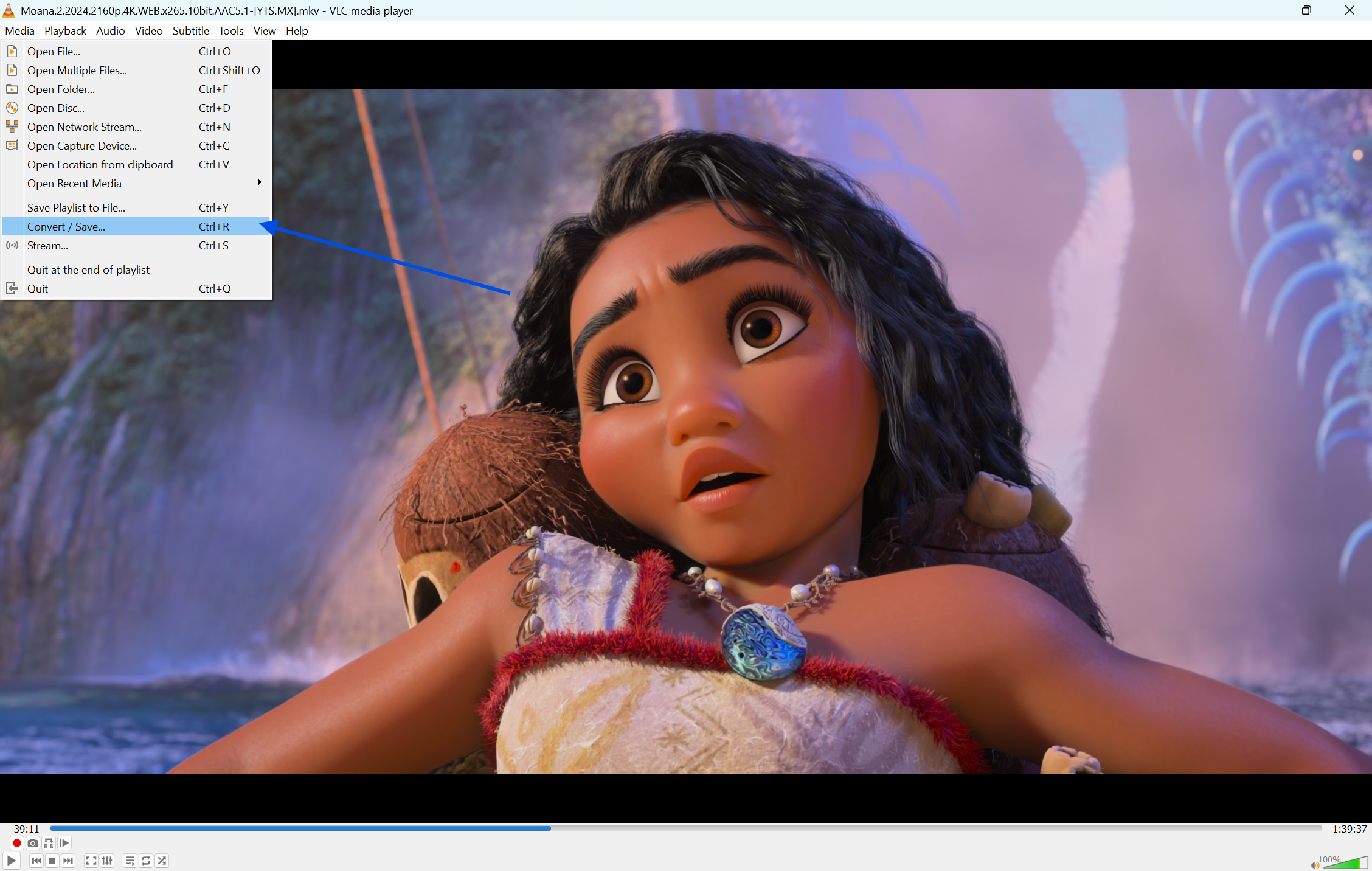
Click on the Media tab in the top-left corner of the menu bar.
-
Select Convert / Save from the dropdown menu. You can also use the keyboard shortcut Ctrl + R.
-
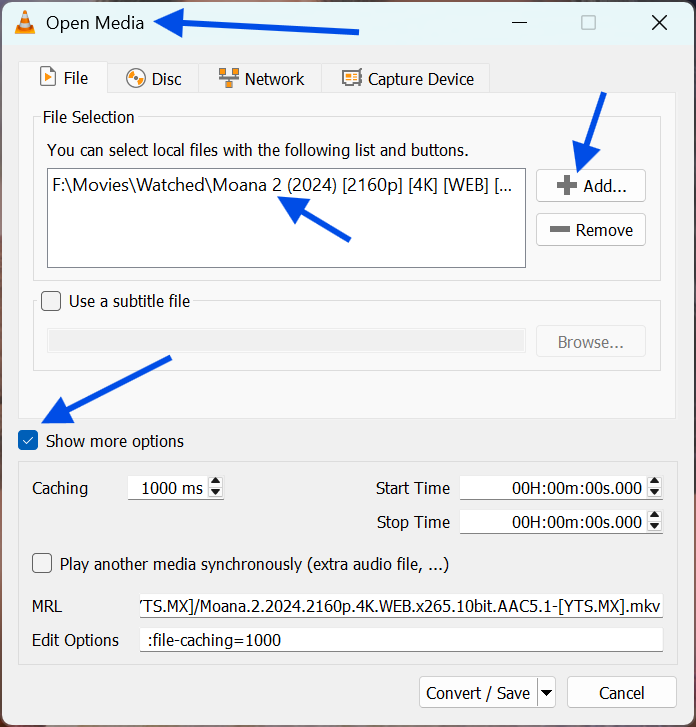
A new window called "Open Media" will appear.
3. Core Action Step
This is where you select your files and choose your output settings.
-
In the File tab, click the Add button.
-
Browse your computer and select the video you want to convert.
-
Click the Convert / Save button at the bottom of the window.
-
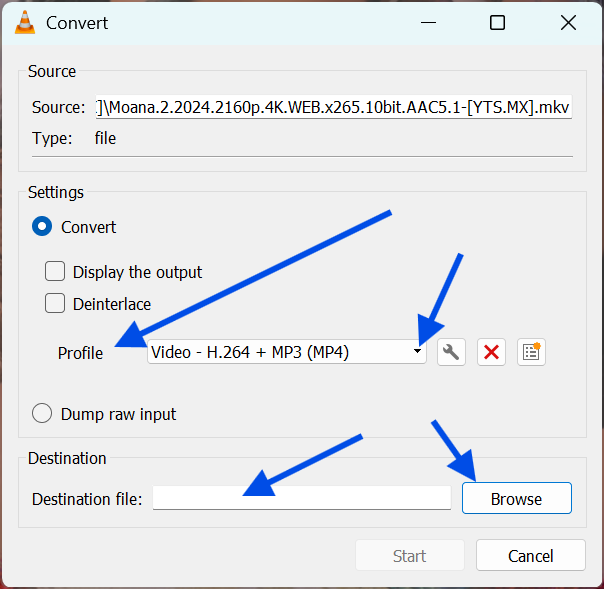
In the Settings section, look for the Profile dropdown.
-
Select your desired format. For most devices, Video - H.264 + MP3 (MP4) is the best choice for compatibility.
4. Customization & Optimization
If you want to reduce the file size or change the quality, you can tweak the settings further.
-
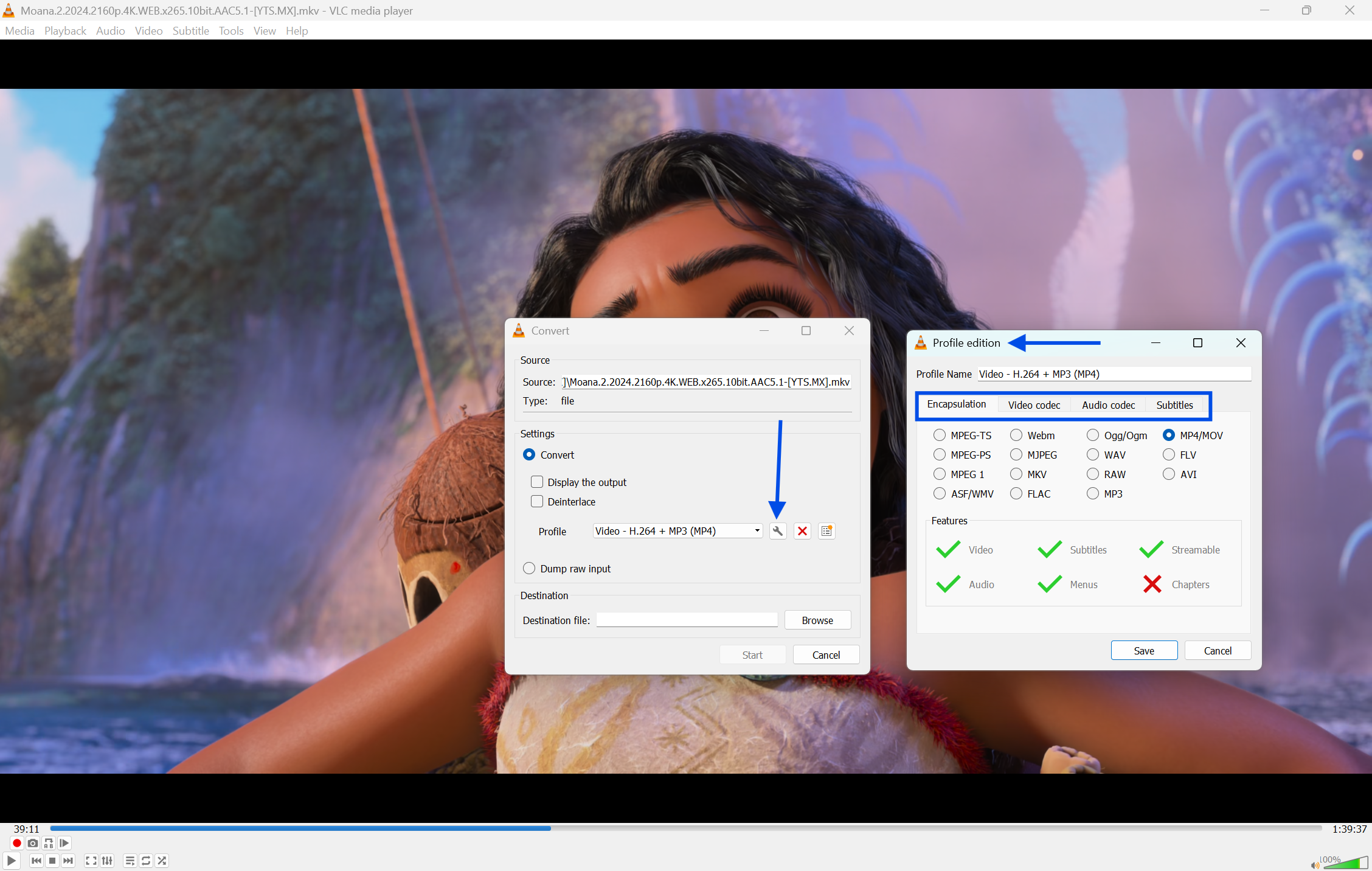
Click the Wrench icon (Edit selected profile) next to the Profile dropdown.
-
Under the Video codec tab, you can lower the bitrate to reduce file size.
-
Under the Resolution tab, you can scale the video down (e.g., from 1080p to 720p).
-
Click Save once you have adjusted your preferences.
5. Finalizing & Saving
The final step is telling VLC where to put the new file.
-
In the Destination section, click Browse.
-
Choose a folder and give your new file a name.
-
Important: Ensure the file name ends with the correct extension, such as .mp4.
-
Click Start. A progress bar will appear in the main VLC window. Do not close the program until the bar reaches the end.
Quick Tips
-
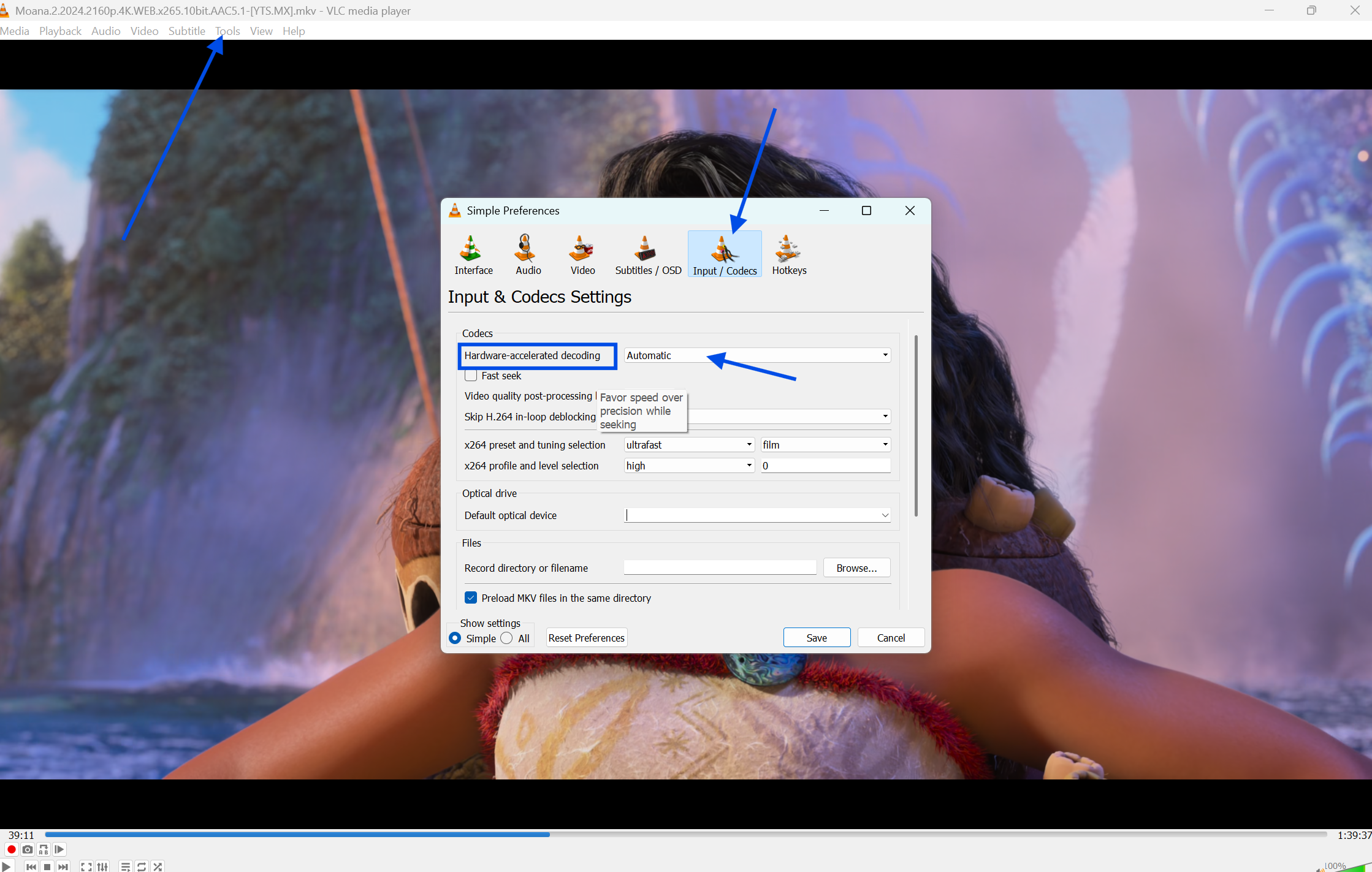
Hardware Acceleration: Go to Tools > Preferences > Input / Codecs and set "Hardware-accelerated decoding" to Automatic to speed up the process.
-
Audio Only: You can use this same process to turn a video into an MP3 file by selecting an Audio profile.
-
Check the Seek Bar: During conversion, the seek bar at the bottom of VLC acts as a progress meter.
Common Mistakes to Avoid
-
Overwriting the Original: Always give your new file a different name, so you do not accidentally delete your source video.
-
Wrong Extension: VLC sometimes fails to add the ".mp4" extension automatically. If the file looks like a white icon after conversion, rename it and add the extension manually.
-
Closing Too Early: If you close VLC before the progress bar finishes, the resulting file will be corrupted.
Pricing and Availability
VLC Media Player is completely free. There are no subscriptions, hidden fees, or "Pro" versions. It is open-source software maintained by volunteers.
Final Verdict
VLC Media Player is more than just a video player; it is a reliable, fast, and free video converter. It is the perfect tool for anyone who needs to fix formatting issues without downloading sketchy third-party software. Whether you are a professional or a beginner, VLC’s conversion features are essential for your digital toolkit.
If you haven't already, you should download the latest version of VLC Media Player from our site today and start optimizing your video library.
Click here to download VLC Media Player
FAQs
Q1. Can VLC convert multiple videos at once?
Ans: Yes. When you click the Add button in the Open Media window, you can select multiple files. VLC will process them one by one in the order they were added.
Q2. Will converting a video reduce its quality?
Ans: It can. If you choose a lower bitrate or a smaller resolution, the quality will drop. However, using the "H.264" profile usually maintains high quality while keeping file sizes manageable.
Q3. Why is my converted file showing no video, only audio?
Ans: This usually happens if the selected codec is not compatible with your player. Stick to the H.264 + MP3 (MP4) profile for the best results across all devices.
Q4. How long does the conversion take?
Ans: It depends on your computer's CPU and the length of the video. A 5-minute HD video usually takes about 1 to 2 minutes to convert on a modern laptop.
Q5. Can I convert 4K videos using VLC?
Ans: Yes, VLC supports 4K conversion. However, 4K files require significant processing power, so ensure your computer is plugged in and has plenty of cooling during the process.
Comments
Let us know about your thoughts
Explore more articles related to VLC Media Player
Here you will find all the latest tips and tricks about VLC Media Player. Also you will get many solution of problems which you may face while using this app.

Published at: Jan 04, 2026
How to Add Subtitles in VLC Media Player – Step-by-Step Guide
You finally sit down to watch a great film, but the dialogue is hard to hear,...

Published at: Jan 04, 2026
How to Stream Videos Online with VLC Media Player – Step-by-Step Guide
Most people use VLC Media Player to watch videos already saved on their hard drives. But...

Published at: Jan 29, 2026
How to Use VLC Equalizer: Best Audio Settings & Custom Preset Guide
Ever feel like your favorite movie sounds flat or the dialogue is hard to hear? This...


Play anything. Anywhere
VLC Media Player is a free and open-source, cross-platform media player software and streaming media server developed by the VideoLAN project. VLC is available for desktop operating systems and mobile platforms, such as Android, iOS and iPadOS.