How to Stream Videos Online with VLC Media Player – Step-by-Step Guide


Asif Mohammad Sovon
Asif Mohammad Sovon, IT Assistant at Bangladesh Air Force and Fileion tech writer, simplifies tech t...
What is VLC Network Streaming?
Step-by-Step Guide: How to Stream Videos Online
4. Customization & Optimization
Click here to download VLC Media Player
Q1: Can I stream YouTube videos on VLC?
Q2: Why is my stream buffering in VLC?
Q3: Does VLC support 4K streaming?
Most people use VLC Media Player to watch videos already saved on their hard drives. But did you know you can use it to watch content from the internet or other devices in your home? You might want to watch a YouTube video without opening a heavy browser or access a movie stored on a laptop in another room.
Streaming through VLC is a great way to reduce system lag and avoid browser-based advertisements. It also gives you more control over playback settings and filters. In this guide, you will learn how to set up VLC for both online URL streaming and local network playback.
Let’s dive into the basics before moving to the hands-on steps.
What is VLC Network Streaming?
VLC network streaming is a feature that allows the player to receive and decode video data over a connection. Instead of reading a file from your local disk, VLC "pulls" the data from a web address (URL) or a local server.
This tool is used by remote workers to view live feeds, students to watch educational content without distractions, and home users to build a central media hub. It turns a simple media player into a powerful gateway for global and local content.
Key Features and Benefits
-
Ad-Free Experience: Watching web streams in VLC often bypasses the overlays and pop-ups found on websites.
-
Format Compatibility: VLC can play almost any streaming protocol, including HTTP, RTSP, and MMS.
-
Hardware Acceleration: It uses less CPU than most web browsers, making it ideal for older computers.
-
Network Discovery: It can automatically find media servers on your Wi-Fi or Ethernet network.
Step-by-Step Guide: How to Stream Videos Online
1. Getting Started
Before you begin, you need the software installed on your device. You can download the latest version of VLC Media Player directly from Fileion to ensure you have a secure and updated installer.
You will also need a stable internet connection and the specific link to the video or stream you want to watch.
2. Initial Setup
Once installed, open VLC. The interface is clean, but the streaming tools are tucked away in the menu.
-
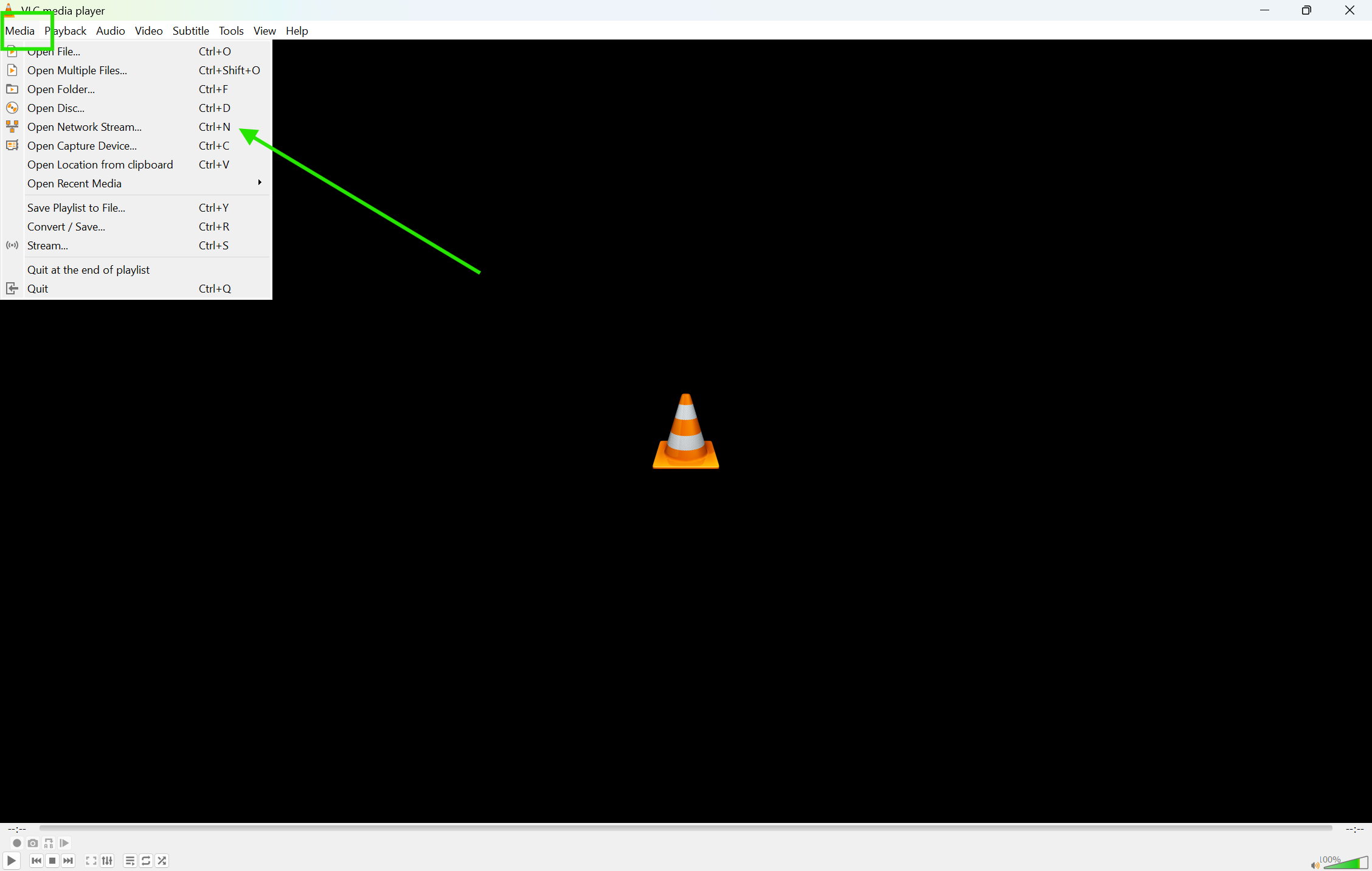
Open the Media menu in the top-left corner.
-
Select Open Network Stream or just press Ctrl + N on Windows.
-
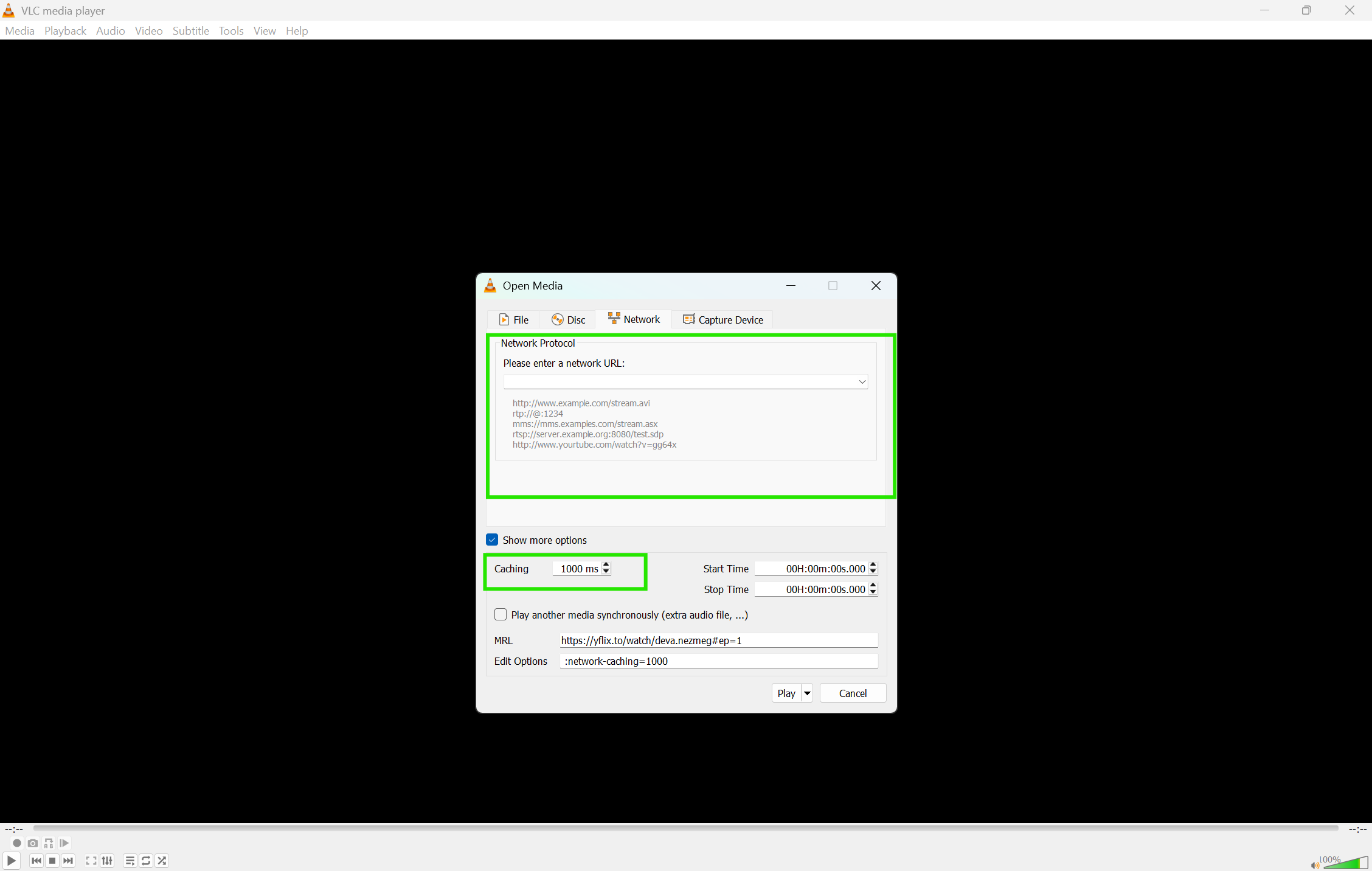
A new window will appear with a text box labeled "Please enter a network URL."
3. Core Action Step
To play a video from the web, follow these steps:
-
Copy the URL of the video from your web browser (e.g., a YouTube link).
-
Paste the link into the Network URL box in VLC.
-
Click Play.
For local network streaming, click the View menu and select Playlist. On the left sidebar, look under Local Network to find Universal Plug n' Play (UPnP) or Network Streams (SAP). VLC will scan your network for available media servers.
4. Customization & Optimization
Streaming can sometimes lag if your connection is slow. You can fix this by adjusting the caching settings:
-
In the Open Network Stream window, select the "Show more options" checkbox.
-
Locate the Caching value.
-
Increase this number (e.g., to 1000ms or 2000ms) to allow VLC to pre-load more video data.
5. Finalizing & Saving
VLC also allows you to save a stream while you watch it. Instead of clicking "Play," click the small arrow next to the Play button and select Stream or Convert. This allows you to choose a destination on your computer to record the online content for offline viewing later.
Tips for Beginners
-
Drag and Drop: You can often drag a URL directly from your browser address bar into the VLC window to start a stream instantly.
-
Audio Sync: If the audio and video don't match while streaming, press the J or K keys to shift the audio timing.
-
Playlist Use: Save your favorite stream URLs in a VLC playlist file (.m3u) so you don't have to copy-paste them every time.
Power users can use the Command Line Interface (CLI) to start streams. This is useful for automating tasks. For example, typing vlc [URL] on your terminal will launch the player and start the stream immediately. You can also use VLC to "broadcast" your own local desktop to other devices on your network by selecting the Stream option in the Media menu.
Common Mistakes to Avoid
-
Private Links: VLC cannot stream videos that require a login or a paywall, such as private YouTube videos or Netflix.
-
Firewall Blocks: If VLC cannot connect, check your computer's firewall. It may be blocking VLC from accessing the internet.
-
Incorrect URLs: Ensure the link ends in a video format or is a direct link to a video-sharing page. Shortened "bit.ly" links often fail.
Pricing and Availability
VLC Media Player is 100% free and open-source. There are no subscriptions, hidden fees, or premium versions. It is available for Windows, macOS, Linux, Android, and iOS.
Final Verdict
VLC Media Player is more than just a video player; it is a versatile tool for managing online and local network content. It is perfect for anyone who wants a lightweight, ad-free, and highly customizable viewing experience.
Whether you are a professional monitoring a live feed or a casual viewer, VLC is a must-have utility. Download it today and start exploring your media beyond your hard drive.
Click here to download VLC Media Player
FAQs
Q1: Can I stream YouTube videos on VLC?
Ans: Yes. Simply copy the YouTube URL and paste it into the "Open Network Stream" box. Note that you may need to update VLC regularly as YouTube frequently changes its playback code.
Q2: Why is my stream buffering in VLC?
Ans: Buffering usually happens due to a slow internet connection. You can reduce this by increasing the "Caching" time in the network settings to 2000ms or higher.
Q3: Does VLC support 4K streaming?
Ans: Yes, VLC supports 4K streaming, provided your hardware (CPU and GPU) and internet speed can handle the high data load.
Q4: Can I stream from VLC on my phone to my TV?
Ans: Yes. If you have a Chromecast or a DLNA-enabled TV, you can use the "Renderer" option in the VLC playback menu to cast your stream to a larger screen.
Q5: Is streaming on VLC legal?
Ans: Streaming is legal as long as you have the right to view the content. Use VLC to stream public videos, your own media, or content from services you have legally accessed.
Comments
Let us know about your thoughts
Explore more articles related to VLC Media Player
Here you will find all the latest tips and tricks about VLC Media Player. Also you will get many solution of problems which you may face while using this app.

Published at: Jan 04, 2026
How to Add Subtitles in VLC Media Player – Step-by-Step Guide
You finally sit down to watch a great film, but the dialogue is hard to hear,...
Published at: Jan 04, 2026
How to Stream Videos Online with VLC Media Player – Step-by-Step Guide
Most people use VLC Media Player to watch videos already saved on their hard drives. But...

Published at: Jan 29, 2026
How to Use VLC Equalizer: Best Audio Settings & Custom Preset Guide
Ever feel like your favorite movie sounds flat or the dialogue is hard to hear? This...


Play anything. Anywhere
VLC Media Player is a free and open-source, cross-platform media player software and streaming media server developed by the VideoLAN project. VLC is available for desktop operating systems and mobile platforms, such as Android, iOS and iPadOS.